
Smartz Connect API
Introduction
Welcome to Smartz Connect API, a tool to seamlessly connect smart diaper technology with healthcare providers. Our API offers a robust, user-friendly solution for real-time health monitoring.
Effortless Integration
Our Smartz Connect API follows RESTful architecture principles, ensuring a straightforward integration process for healthcare providers. With standard HTTP methods and resource-oriented design, developers can quickly and easily incorporate our API into their existing systems.
Real-time Health Insights
Our API provides live data streams, allowing healthcare providers to monitor patient well-being in real time. Our API facilitates quick decision-making and proactive care by delivering timely alerts and notifications.
Secure Data Exchange
Smartz Connect API employs robust encryption and authentication mechanisms to safeguard patient data, ensuring compliance with healthcare data privacy regulations.
Tailored for Healthcare
Leverage our Smartz Connect API to meet the specific needs of your healthcare environment. Whether integrating with electronic health records(EHRs) or other applications, our API provides the flexibility to enhance and optimize your healthcare ecosystem.
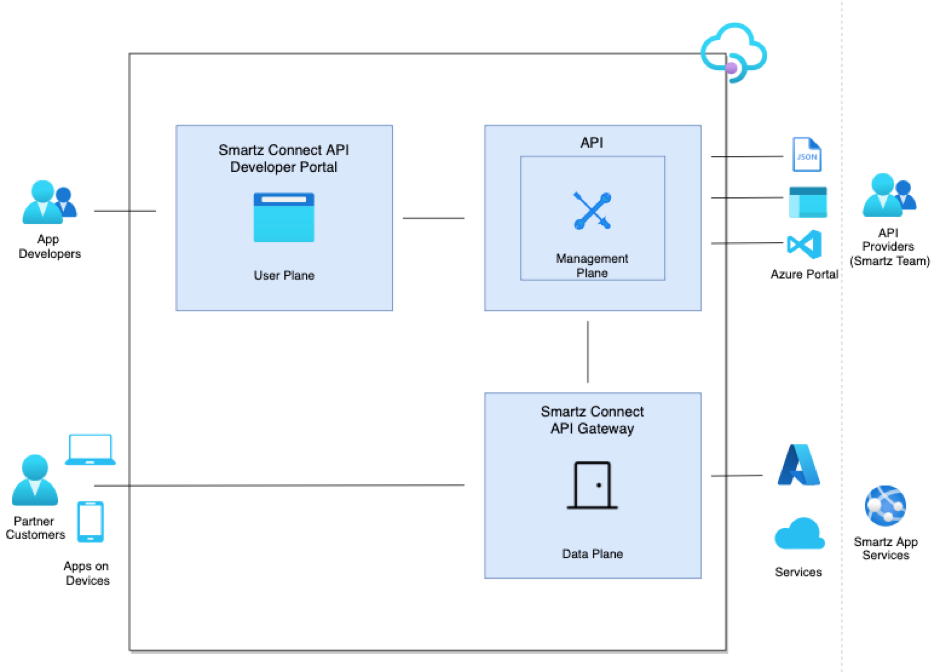
Fig: Architecture overview of Smartz Connect API
Smartz Connect API is made up of an Smartz Connect API Gateway, Management Plane and a Developer Portal. These components are Azure-hosted and fully managed by Azure.
Smartz Connect API Gateway
All requests from client applications first reach the API gateway, which then forwards them to respective backend services. It acts as a façade to backend services by accepting API calls and routing them to appropriate Smartz app services.
It verifies API keys and other credentials such as JWT tokens presented with requests.
Enforces usage quotas and rate limits
Caches responses to improve response latency and minimize load on backend services.
Emits logs, metrics and traces for monitoring, reporting and troubleshooting.
Management Plane
API providers interact with the service through the management plane, which provides full access to the API Management service capabilities.
Provision and configure API management service settings
Package APIs into products
Set up policies like quotas or transformations on the APIs
Get insights from analytics
Manage users
Developer Portal
App developers use the developer portal to discover the APIs, onboard to use them, and learn how to consume them in applications. Developers can:
Read API documentation
Call an API via the interactive console
Create an account and subscribe to get subscription keys
Access analytics on their own usage
Download API definitions
Manage application and their keys
Key Concepts
Organisation
An organisation is an entity setup by an admin where all patients are linked. It acts as the central node, connecting all other entities; Manufacturer, Devices etc. within the Smartz system.
Manufacturer
Manufacturers are entities providing a variety of Smartz products utilized by patients. Each manufacturer maintains a catalogue of different products, and patients can use various products based on different times of the day. Multiple manufacturers can be linked to an organisation, creating a diverse range of Smartz products available for patient use.
Devices
Smartz Pods
It is a portable, reusable data transceiver that is connected to the Smartz sensor pad and worn continuous or as needed by the patient enabling live data streams and real-time monitoring of patient.
Smartz Nodes
It is a gateway device that utilizes WiFi and Bluetooth mesh network to receive Smartz pod sensor data and relay them to Smartz Cloud.
Pre-Requisites
Note that Management of Organisation, Manufacturer and Devices are done in Smartz Dashboard. Smartz Connect API will only give read access to these entities. Connecting Manufacturer and Devices to an organisation is not mandatory to get started with Smartz Connect API. However, it is required to get real time status updates on patient.
Before getting started with Smartz Connect API, make sure an organisation admin has an user account in Smartz Dashboard and have created an organisation.
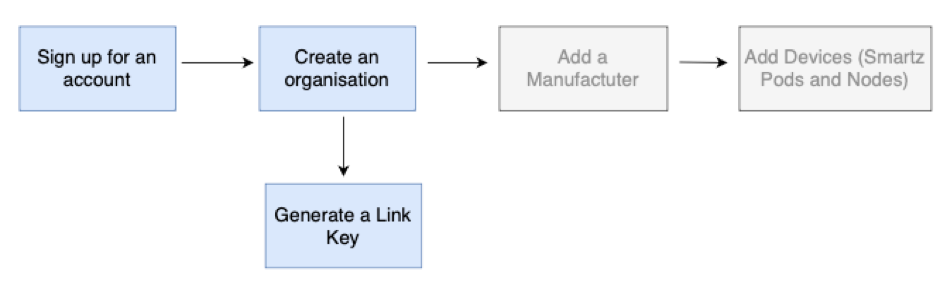
Fig 2: Steps involved in Smartz Dashboard
Getting Started for Developers
In this section, we’ll walk you through the steps to get started with Smartz Connect API.

Fig 3: Steps involved in Smartz API Connect
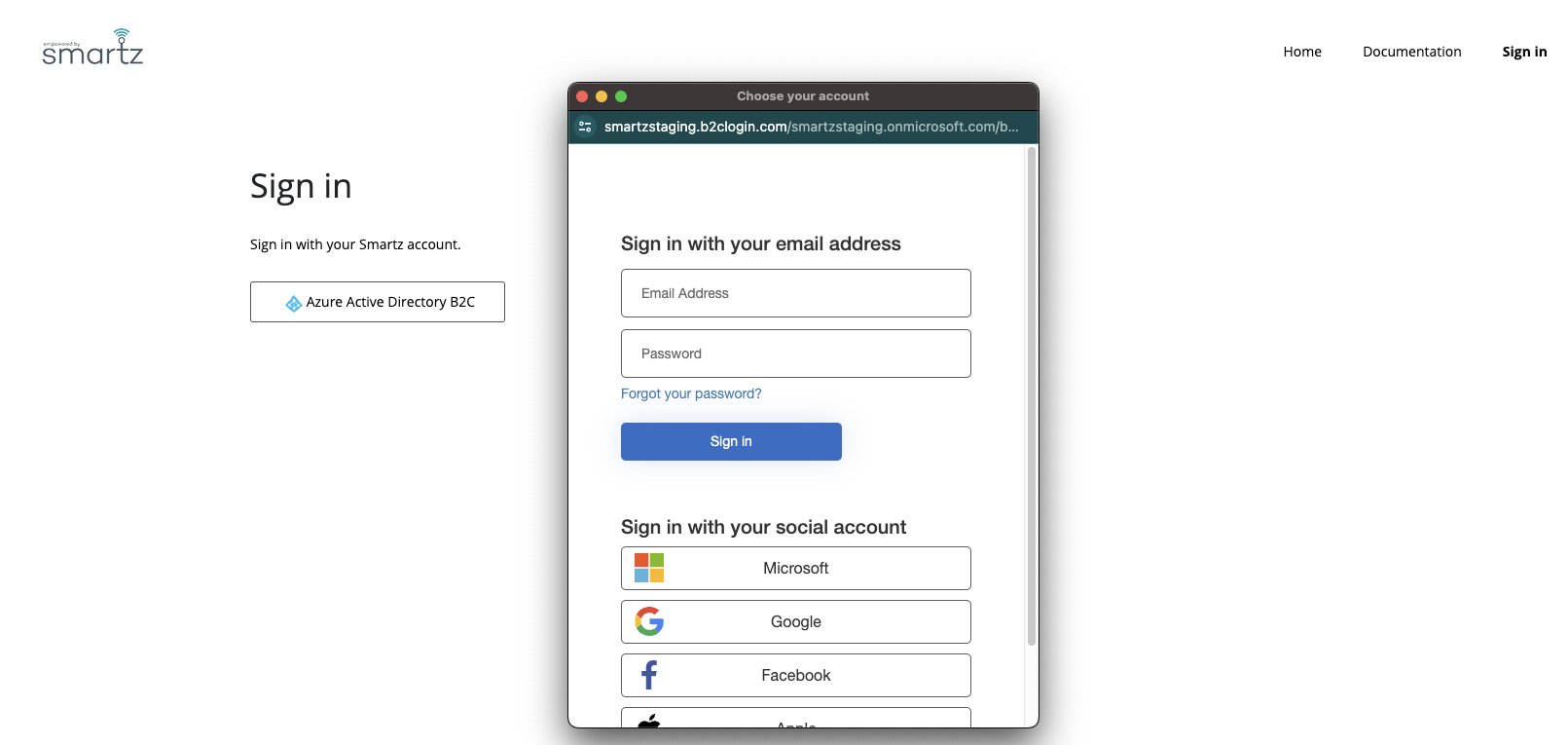
1. Signin with Smartz Account
To access our Smartz Connect API, developers need to sign in with an account already created in Smartz Dashboard System.
2. Subscribe to Our Products
On our products page, you should see 1 item you can subscribe to:
- Smartz API Product
Choose the product and create a subscription by providing a subscription name to gain access to the API
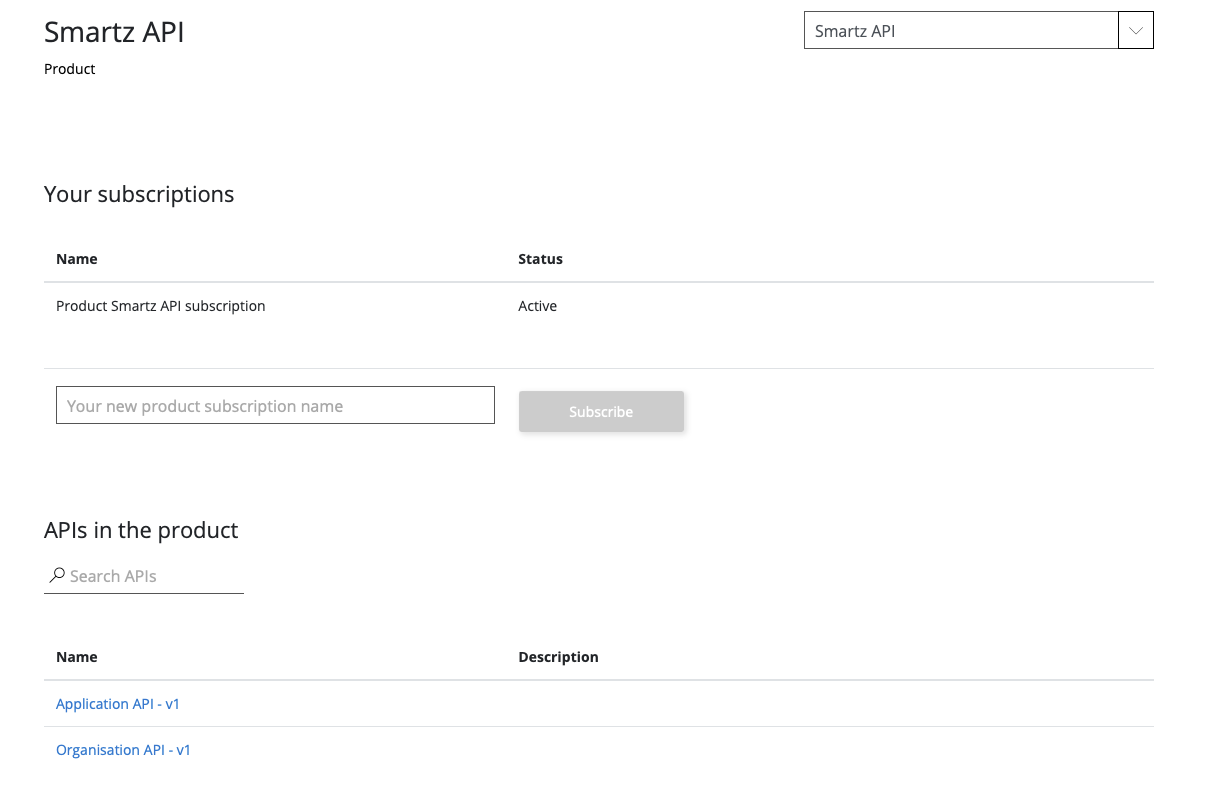
Smartz API Product consists of two different APIs.
- Application API: This consists of a /token api which generates an access token that is required to access all the apis that are under Organisation API. More information on how access token is created can be found under 'Authentication and Keys' and OAuth 2.0 section.
- Organisation API : This consists of all the apis to manage organisation, patient and products. In order to access this API, developers will need a valid subscription key and a valid access token.
More information on both of these APIs can be found under APIs menu.
3. Manage your subscriptions
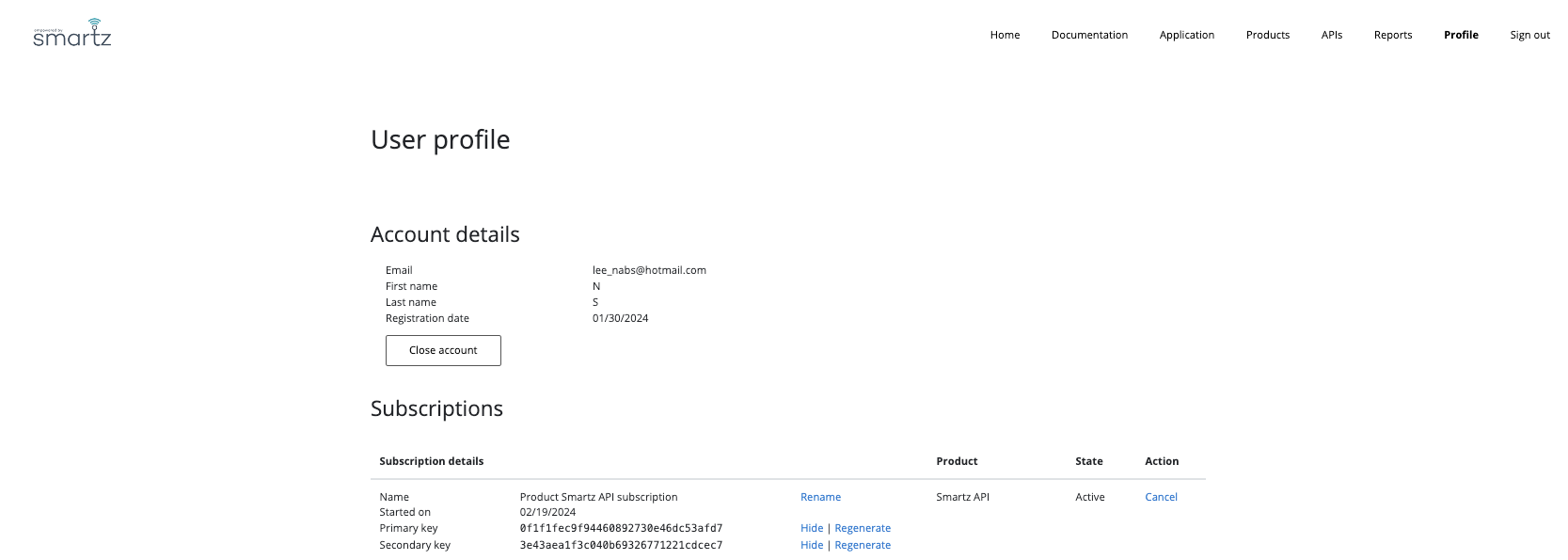
Developers are issued a Primary Key and Secondary Key for every product.
Both primary and secondary subscription key provides access to the API. Without one of them, developers cannot access any of the APIs. Subscriptions are stored under the user profile and have no expiry.
4. Register an Application
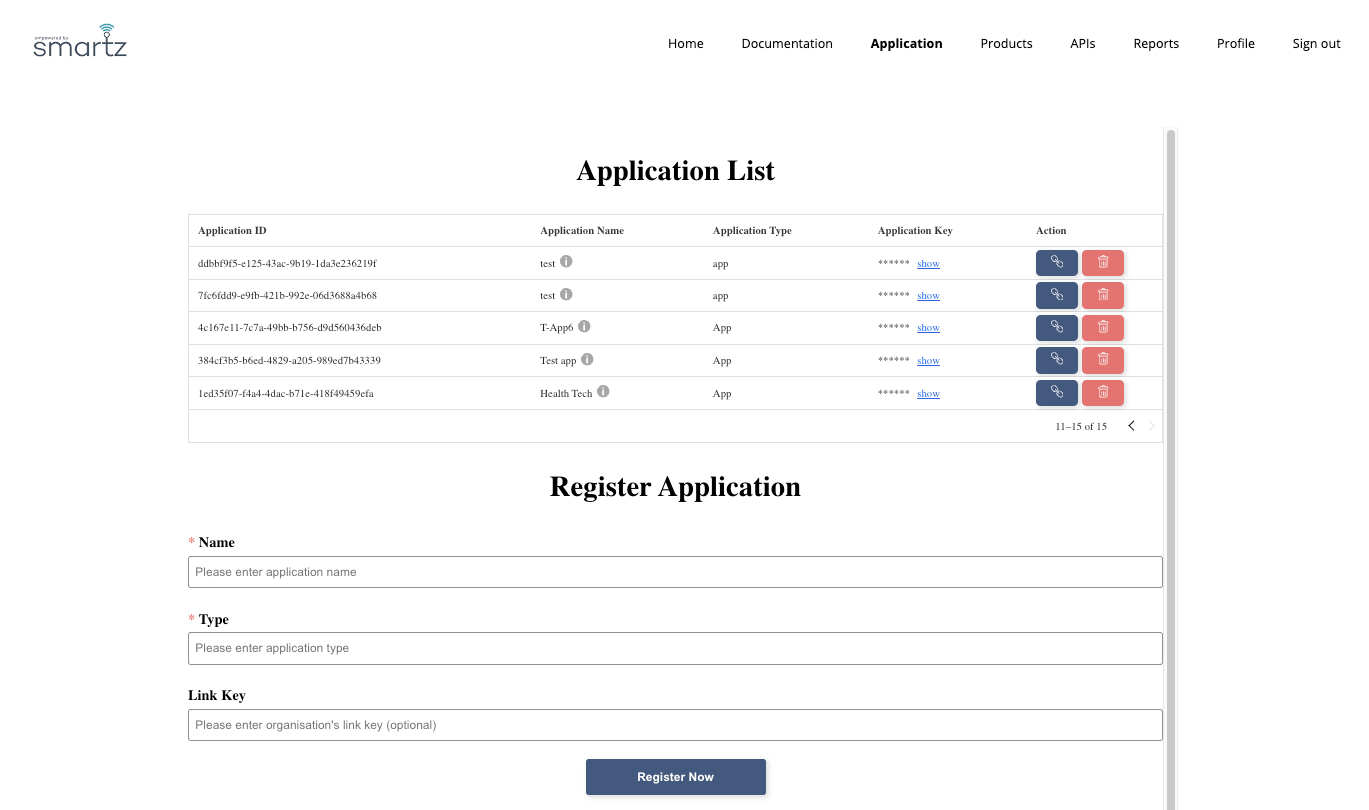
To interact with Smartz Connect API, you need to register your application. Go to “Application” section and and register a new application. Provide necessary details, such as application name, application type etc. Upon registration, you’ll receive a unique App Id and App Key. Save it in a secure place as you will need this to generate an access token for authenticating and authorizing access to Smartz Management API.
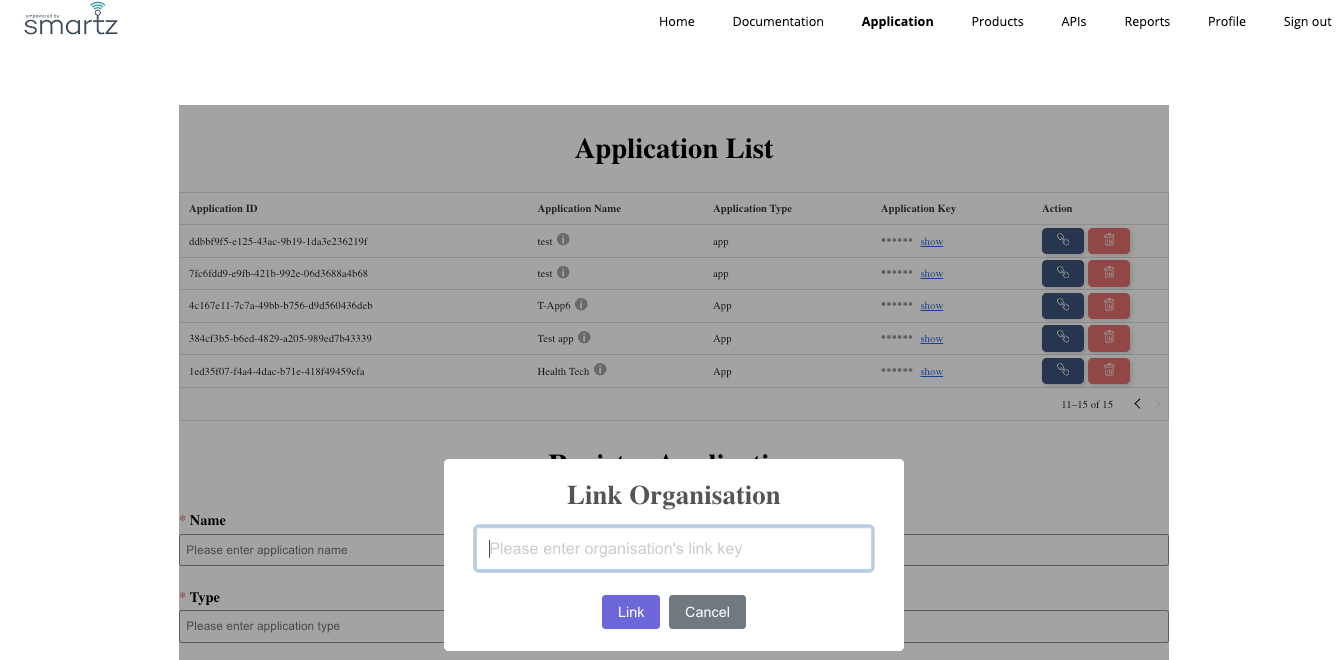
Note: If you have a link code to an organisation, you can use it during application registration process. If not, you can link application to an organisation using “Link Organisation” button in “Applications” section.
5. Link an application to Organisation
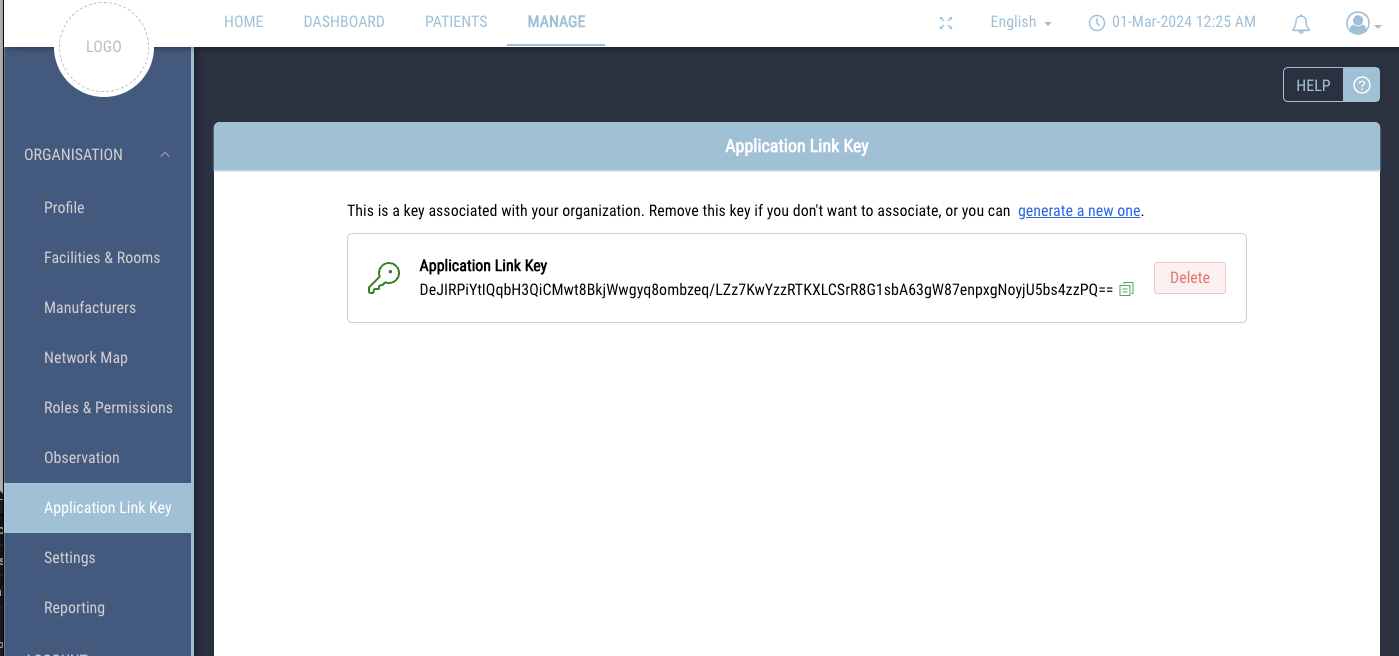
In order to get organisation-level access, in Manage -> Organisation -> Application Link Key of your Smartz Dashboard account, obtain a link code associated with that organisation. In “Application” section in the developer portal, input the obtained share code to establish a link between the application and the organisation.
You are now ready to leverage the power of Smartz Connect API for seamless integration with healthcare systems. Learn more about different keys used in the system and how to authenticate against the API.
Authentication and Keys
There are three different sets of keys used in Smartz Connect API.
Subscription Key
Subscription Key acts as a unique identifier for a subscribed API product, offering a secure means of authenticating and tracking usage. Developers needs to include a subscription key in the headers of all API requests to authenticate and authorize access to specific API products. The subscription key can be found under user profile in the API Manager Portal.
The subscription key is assigned to the ‘x-sub-key’ parameter of the header.

While subscription key is used to authenticate user and track usage of the apis, it alone is not enough for authorizing access to apis. Developers need a JWT access token in the Authorization header as well which is described as below.
App Id and App Key
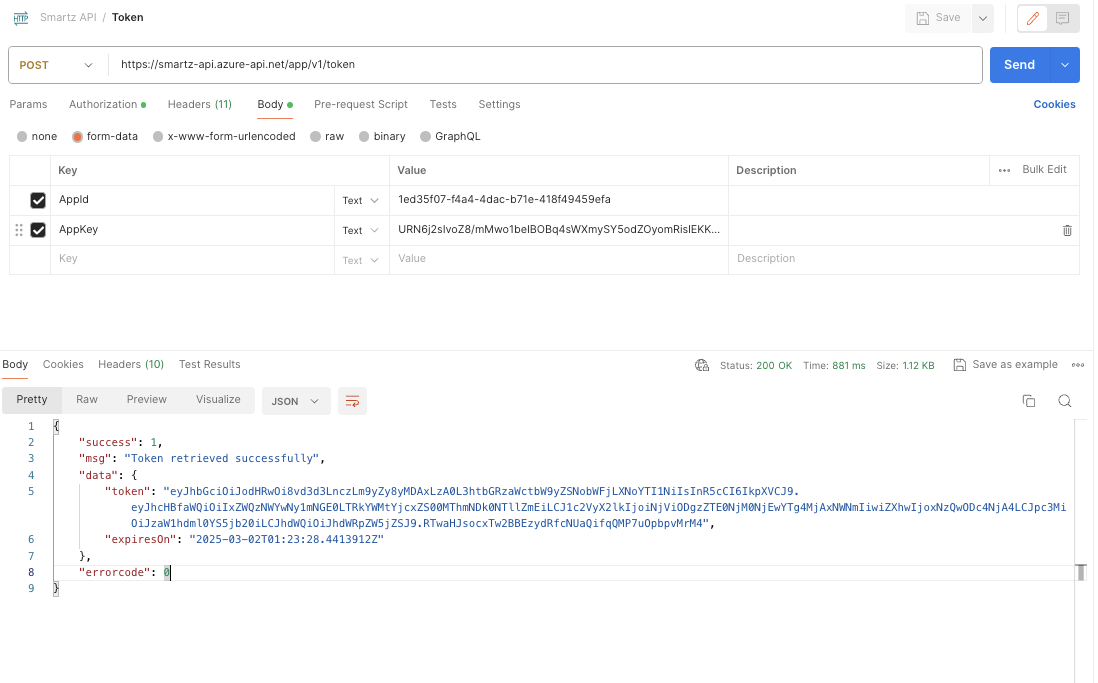
For generating access tokens and ensuring secure authorization, developers will utilize the App ID and App Key. Here’s how to leverage these keys:
Upon application registration, you receive a unique App Id and App Key.
Include these credentials in your request to obtain access tokens.
Safeguard these keys to maintain the integrity and security of your application’s communication with the authentication server.
Access token is a temporary credential granting your application access to the Smartz Connect API. Include this token in the Authorization header of API requests to validate and authorize the interactions with the API. It has a limited validity, so ensure they are refreshed as needed to maintain continuous access.
Get the access token with this url: https://smartz-api.azure-api.net/v1/token
Link Code/ Link Key
The Link Code, also referred to as the Link Key, plays a pivotal role in establishing connections between applications and organizations within our system. Follow these steps to use the Link Code:
Organisation admin generates a unique Link Code associated with that organisation in Smartz Dashboard.
During application registration / In Application section, input this Link Code to create a secure link between your application and the designated organisation.
OAuth 2.0
Smartz API uses OAuth 2.0 token for authentication of request. User will request an access token using Client Credential Grant. The App Id and App Key are used when requesting the access token.
The received token has an expiry time. The same token can be used for requests until it expires. A new token can be requested by using the POST /token service in the same way as the initial token. The new token can be requested before the previous one has expired to avoid authentication failure due to expired token.
The token must be treated as a credential and kept secret. The party that has access to the token will be authenticated as the user that requested the token. The below sequence described the flow for requesting a token and using the token in a request.
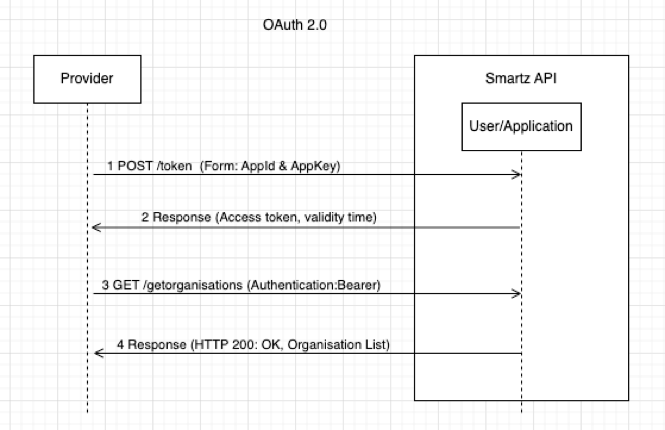
Provider system requests an access token using the App Id and App Key as authentication.
Application platform authenticates the credentials and responds with the access token.
Provider system will use the access token for any request that is sent to the Application platform.
Token is added to the Authorization header of all the api requests as below:
Authorization: Bearer <token>
